Friday, October 23, 2026 | Time Tracking Software
Managing employee productivity can become difficult when teams work from different locations, use multiple applications, or follow flexible work schedules. Businesses need a simple way to understand how working hours are being used without making employees manually record every activity.
Silent App is designed to make this process automatic. Once installed and connected to a user's profile, the application runs in the background and records work-related activity automatically. Administrators can then view the collected information through the dashboard and use it to understand employee time, application usage, and productivity patterns.
This guide explains how Silent App works, how to install and configure it, and how businesses can use its different tracking and reporting features.
Silent App is an employee monitoring software component that automatically tracks computer activity after it has been installed on an employee's Windows or Mac computer.
Instead of requiring employees to start a timer whenever they begin working, Silent App starts tracking when the computer starts and the application runs in the background.
The collected information can be viewed through the Silent App dashboard. This gives administrators a central place to review employee activity, productivity levels, tracked applications, and other available statistics.
Some of the main capabilities include:
The basic process is straightforward. First, the business creates a Silent App/Talygen account and installs the application on the required employee devices.
After the application is connected with a user's profile, it starts automatically when the computer starts. It continues running in the background while the user works.
The application records supported activity and sends the collected information to the cloud so that authorized administrators can review it through the dashboard.
In simple terms, the process works like this:
This automatic time tracking approach removes the need for employees to manually start and stop timers throughout the day.
The first step is to register and create your account. During the onboarding process, you can set up your account and download the Silent App.
Once the account is ready, the application needs to be installed on the required employee devices.
Businesses should make sure that the required users have the application installed and that their profiles are correctly connected. During installation, the company administrator may need to enter the appropriate Talygen company administrator credentials.
The onboarding process also provides installation guidance to help users complete the setup.
Silent App supports both Windows and Mac OS, allowing businesses to monitor activity across commonly used desktop environments.
For Mac users, the Silent App download page can be used to obtain the application. The installation instructions provided during onboarding can then be followed to complete the setup.
For any supported device, businesses should make sure that:
After installation and setup, tracking can begin automatically.
One of the main features of Silent App is automatic employee time tracking.
Once Silent App is linked to a user's profile, tracking does not require the employee to manually start a timer. When the computer starts and the application runs, Silent App begins collecting supported activity information.
This can help businesses understand how much time is being spent on different applications and websites during the working day.
For example, an administrator may be able to review:
The collected information can then be viewed from the dashboard.
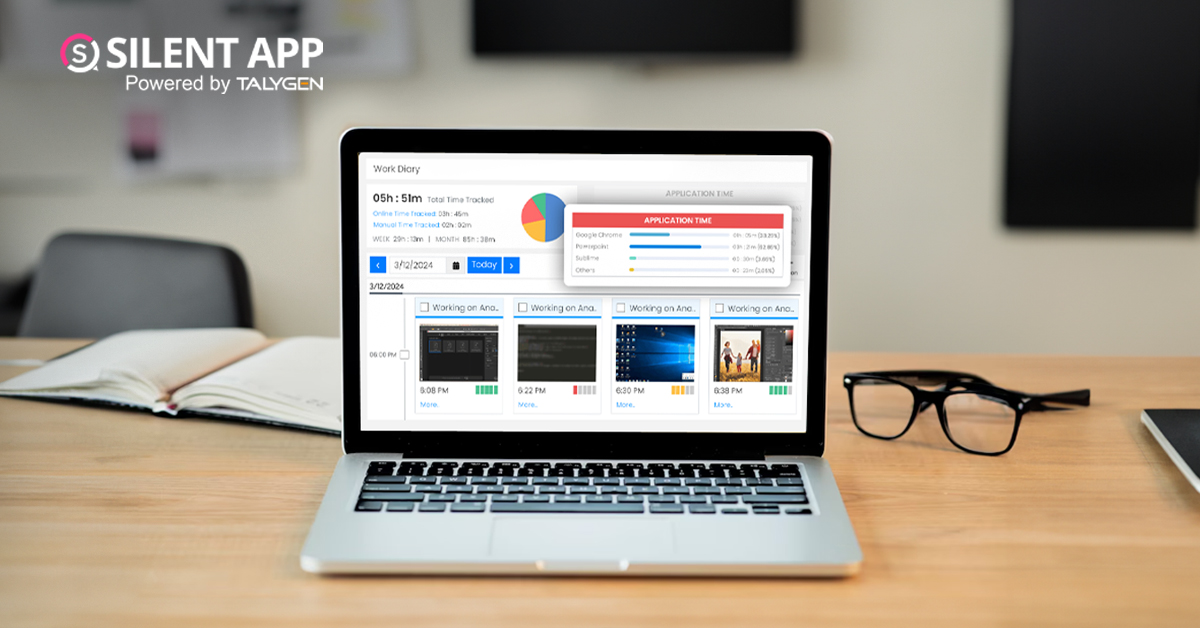
The dashboard is the main place where administrators can review collected information.
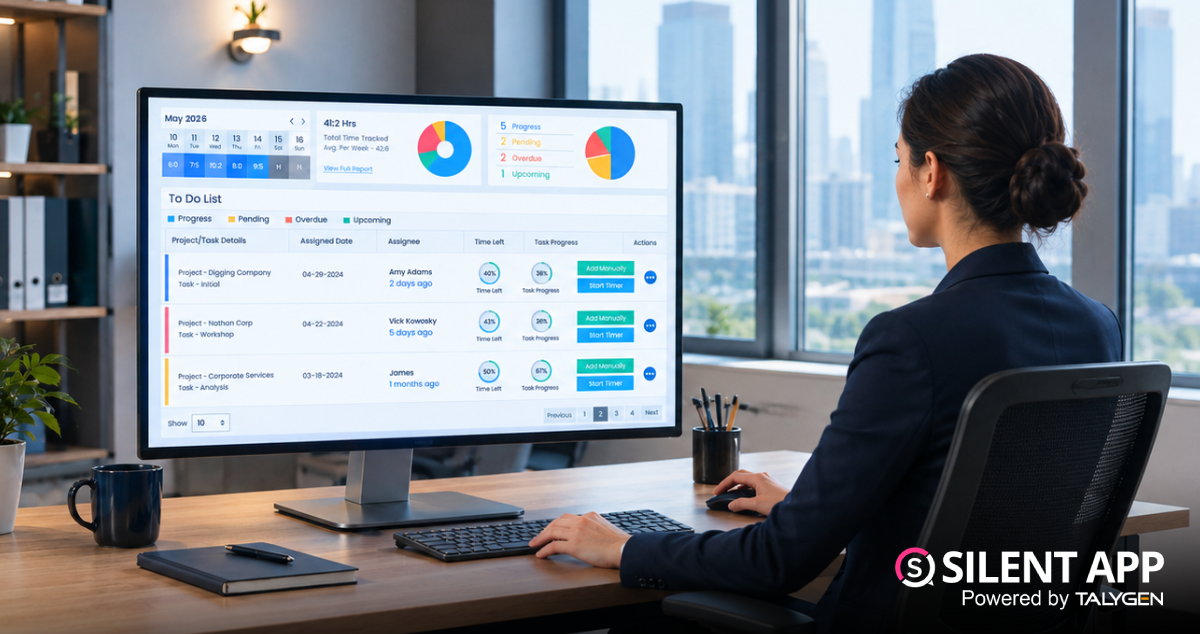
The employee productivity dashboard presents activity information in a graphical format and can also provide performance tables. Depending on the setup, administrators can view information at the department level or for individual users.
This makes it easier to move from raw tracking information to a broader understanding of employee activity.
For example, a manager can review information for an entire department and then look at individual users when more detail is required.
The dashboard can provide visibility into:
Silent App brings employee time tracking into one centralized system. Once installed and connected with user profiles, it can run automatically in the background and collect supported activity information without requiring employees to manually start a timer.
Its dashboard provides a way to review productivity information at both department and individual-user levels. Businesses can also classify applications and websites as productive, unproductive, or neutral, while optional screenshots can provide additional activity context.
For organizations with distributed teams, features such as automatic tracking, different user time zones, offline data handling, productivity settings, and data-driven statistics can make day-to-day workforce monitoring easier to manage. The key is to configure the platform around the organization's actual tracking requirements and workplace policies.
 2026
Oct
2026
Oct
Silent App Guide: A Complete Guide to Time Tracking, Productivity Monitoring, and Employee Insights
Friday, October 23, 2026
Remote Work Monitoring Software: Managing Distributed Teams with Silent App
Wednesday, October 07, 2026
Silent App vs Worktivity: Comparing Employee Monitoring Features for Modern Businesses
Thursday, October 01, 2026 Sep

Dynamic Reporting in Silent App Helping Businesses Turn Workforce Data into Useful Insights
Tuesday, September 29, 2026
Silent Monitoring Application Comparison: How Silent App Compares with Other Tools
Friday, September 25, 2026
How Silent App Helps Businesses With Audio and Video Surveillance
Tuesday, September 22, 2026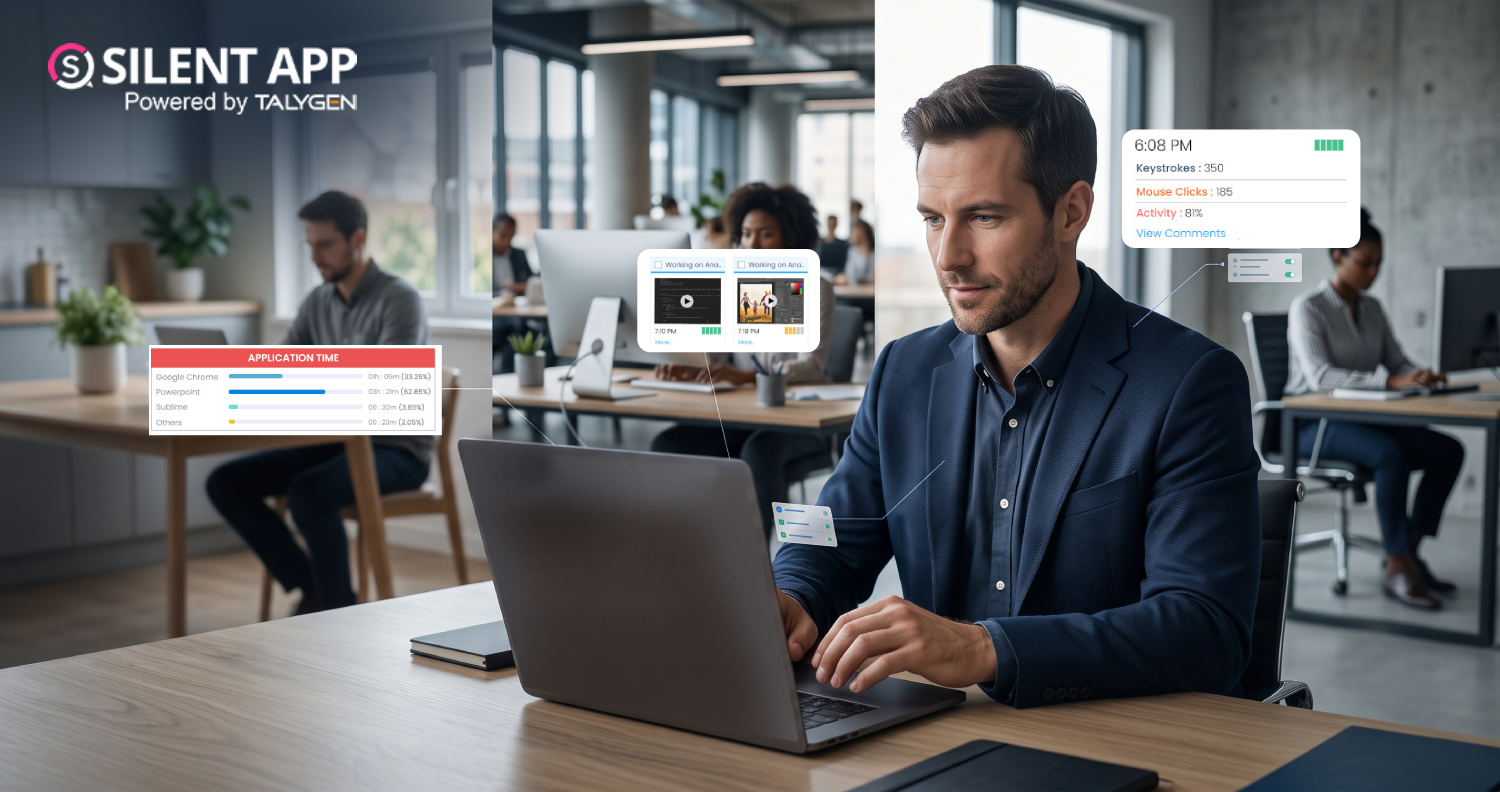
Silent App: Feature-Based Employee Monitoring for Modern Businesses
Friday, September 18, 2026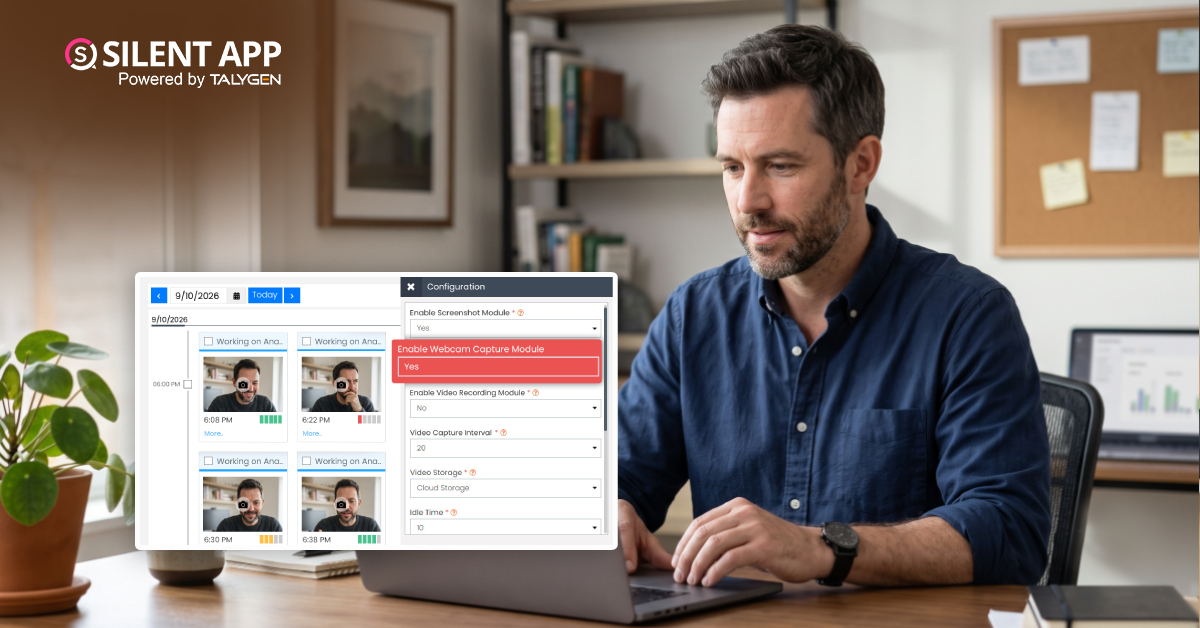
Webcam Capture in Employee Monitoring: How Silent App Helps Businesses Manage Remote Teams
Monday, September 14, 2026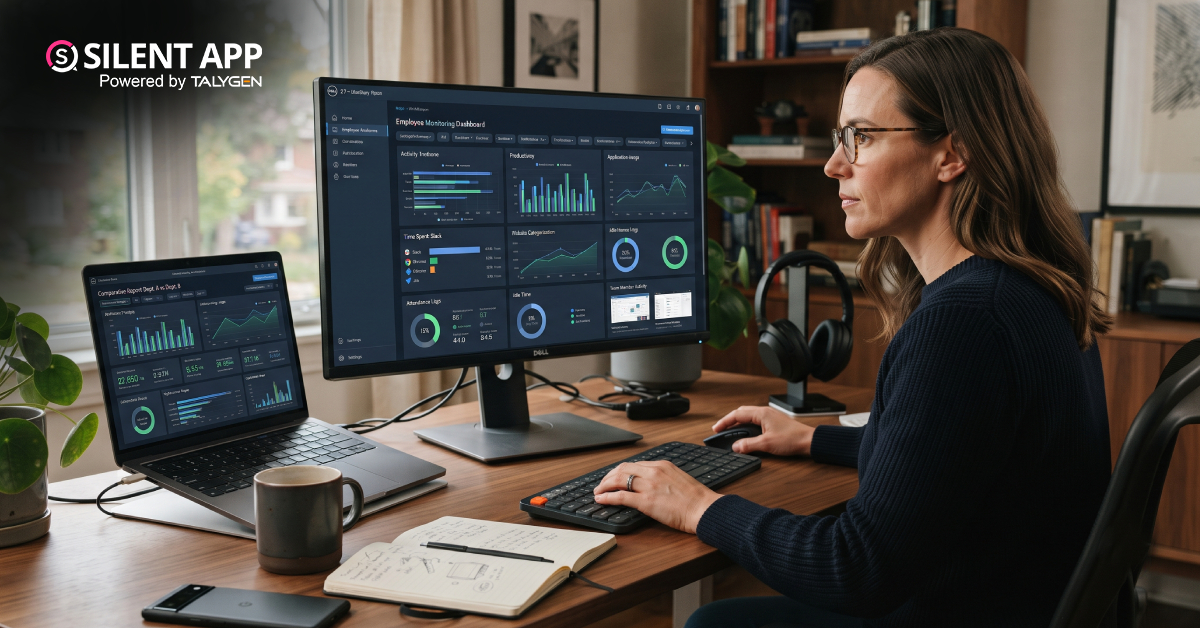
Silent App vs. Time Doctor Classic: Comparing Features, Monitoring & Pricing
Thursday, September 10, 2026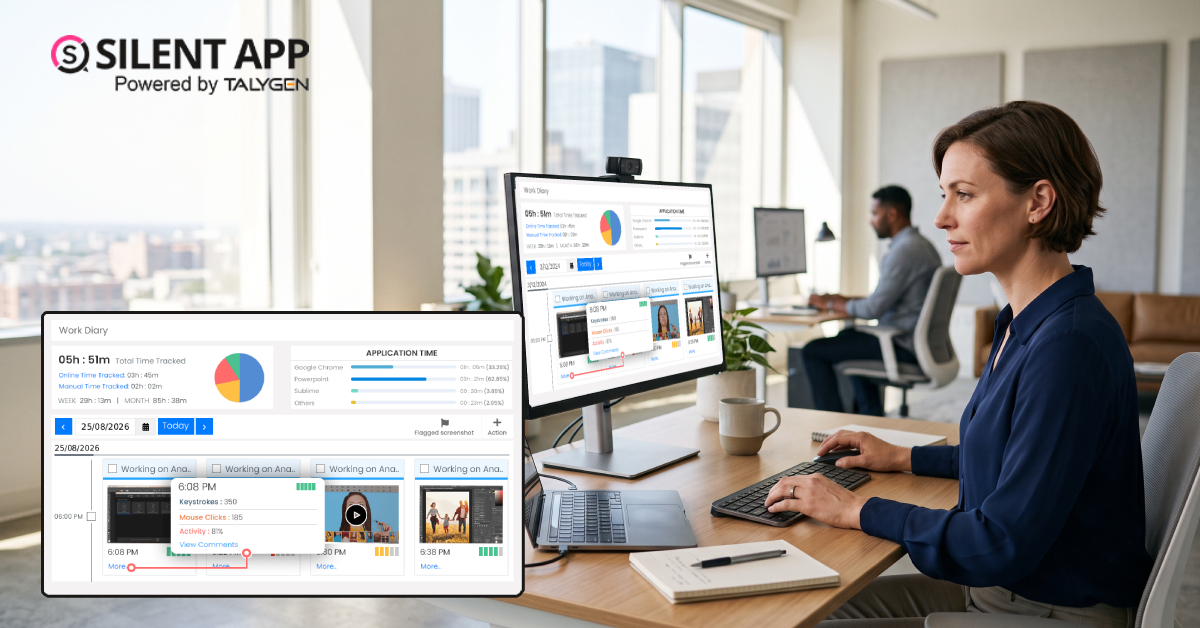
Why SilentApp Is the Employee Monitoring App Every Modern Business Needs
Tuesday, September 08, 2026 2024
Sep
Why You Might Want Hidden User Activity Monitoring Software
Friday, September 20, 2024
Top Trends for Remote Work Management in 2024
Friday, September 20, 2024
6 Expert Ways to Balance Privacy & Safety in Remote Work with Silent Monitoring
Friday, September 20, 2024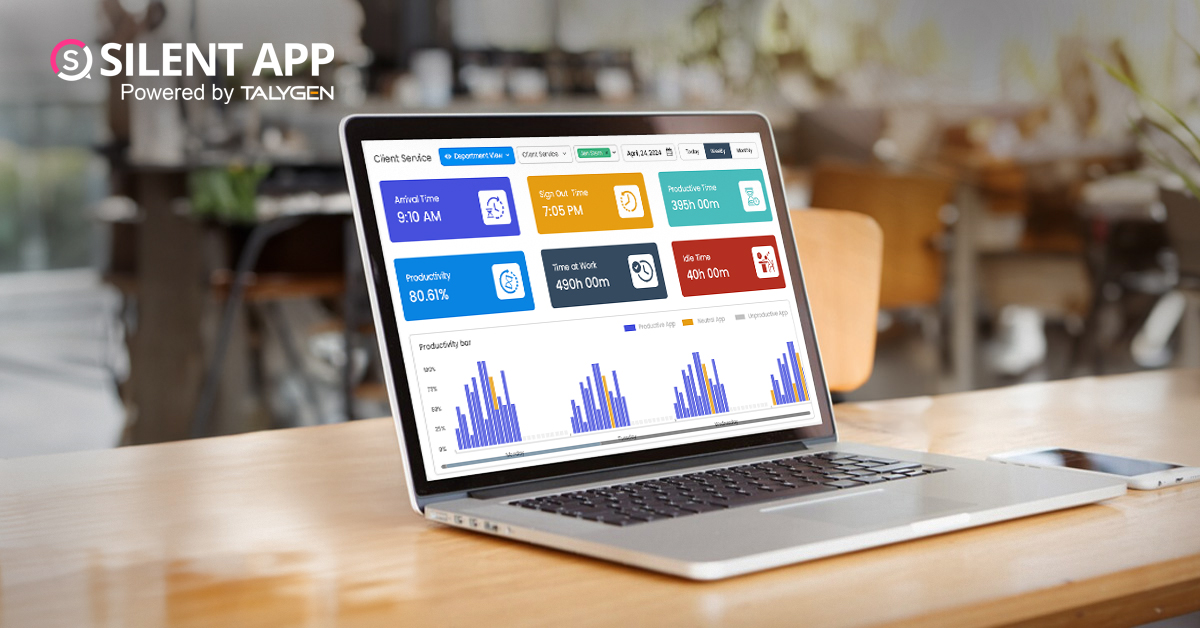
How to Enhance Workforce Monitoring with the Silent App?
Thursday, September 19, 2024
Employee Moonlighting: How Does Stealth Mode Monitoring Software Prevent It?
Thursday, September 19, 2024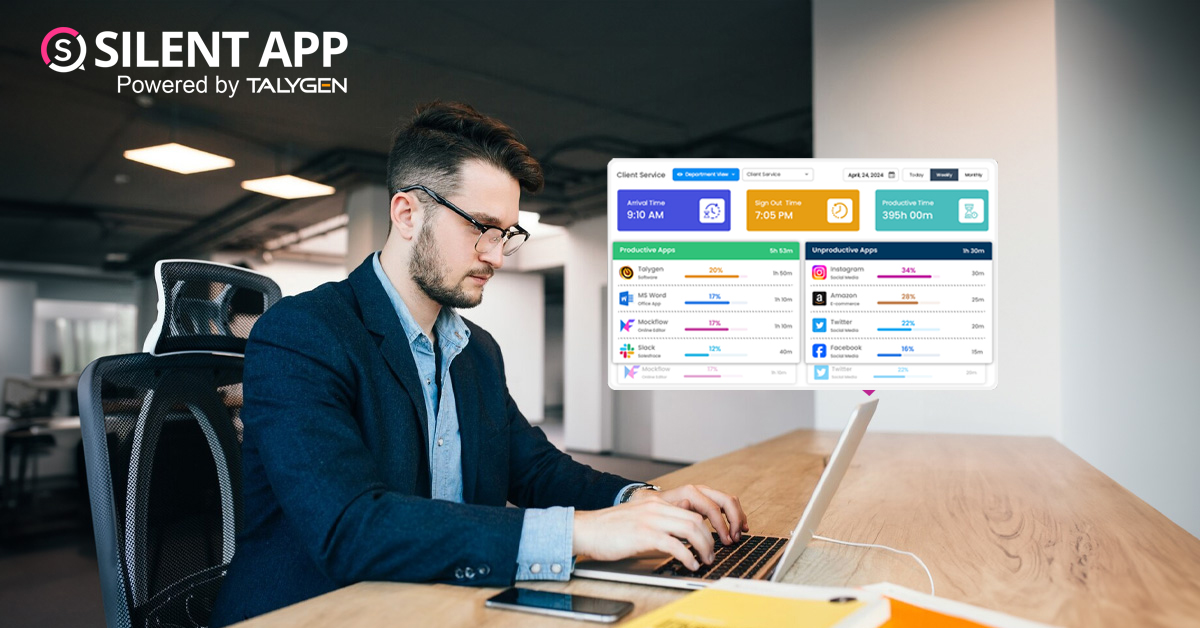
How To Monitor My Employees Without Letting Them Know?
Thursday, September 19, 2024
How Do Employers Monitor Employees' Internet Usage in Stealth Mode?
Thursday, September 19, 2024 Jul

How Does Silent App Help Small Businesses Get More ROI?
Wednesday, July 31, 2024
Silent Activity Tracking Software: The Quiet Helper for Enhancing Work and Safety
Wednesday, July 17, 2024
Stealth Mode Monitoring: Benefits for Remote and Office Work Environments
Tuesday, July 09, 2024
Silent App: Helps Limiting the Impact of Employee Disengagement
Friday, July 05, 2024 Jun

Prevent Quiet-Quitting with silent app
Monday, June 24, 2024
Debunking 8 User Activity Monitoring Myths & Misconceptions
Friday, June 21, 2024
7 Features to Look for in Your Next User Activity Monitoring Software
Friday, June 21, 2024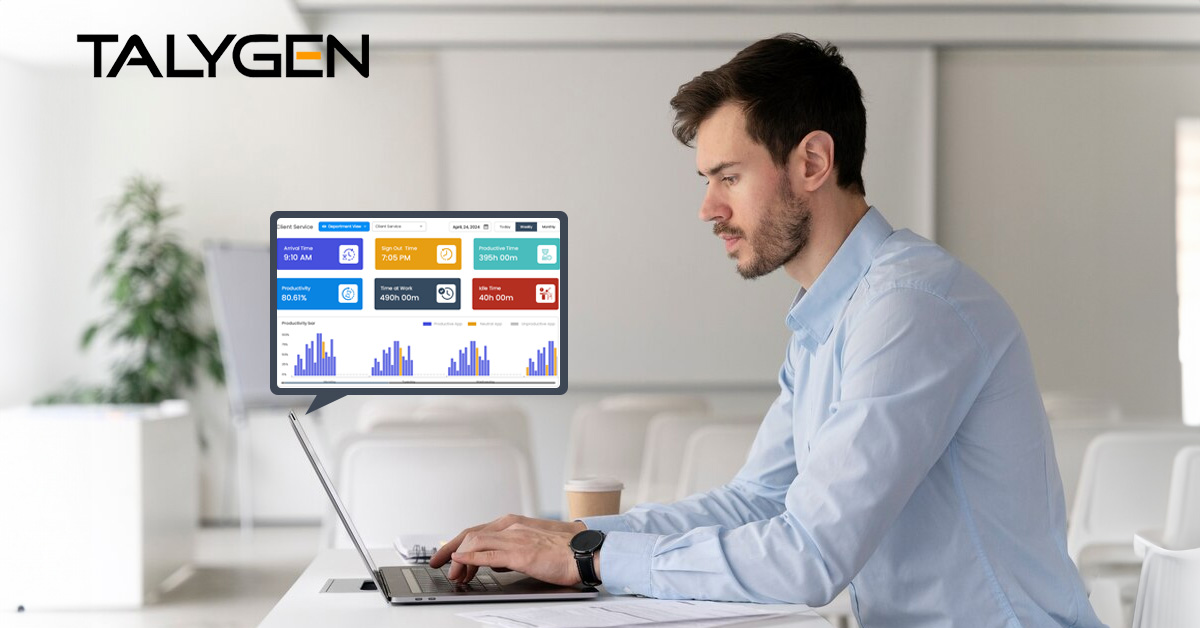
10 Tips for Choosing the Best Silent Activity Monitoring Software
Wednesday, June 19, 2024